
ads
Step by step to carry out the My INSS Life Test
Requirements
To carry out the INSS Life Test, it is important to be prepared with all the necessary documents and information. See the essential documents below:
- Identification documents:
- Identity document with photo (RG, CNH, Passport, etc.).
- CPF (Individual Taxpayer Registration).
- Card of the account that receives your benefit.
- Proof of address:
- Electricity, water, telephone bill, or other document that proves your address.
- INSS card:
- If you have one, take your INSS card to facilitate assistance.
- Access data (for Online Life Proof):
- Access to the “My INSS” application or the official website.
- Cell phone or computer with internet.
In-person Proof of Life
- Check the Proof of Life Date:
- The Life Test must be carried out annually. Check with your bank for the deadline to carry out the procedure.
- Gather the Necessary Documents:
- Make sure you have all the documents listed above on hand.
- Go to the Paying Bank:
- Go to the bank branch where you receive your benefit. It is not necessary to schedule in advance.
- Present the Documents:
- At the service, present your identification documents and proof of residence.
- Take the Life Test:
- The attendant will check your documents and register the Proof of Life in the system.
- Confirm Receipt:
- Make sure that the attendant has confirmed that the Life Test has been carried out. Keep any receipt you receive.
Proof of Life Online
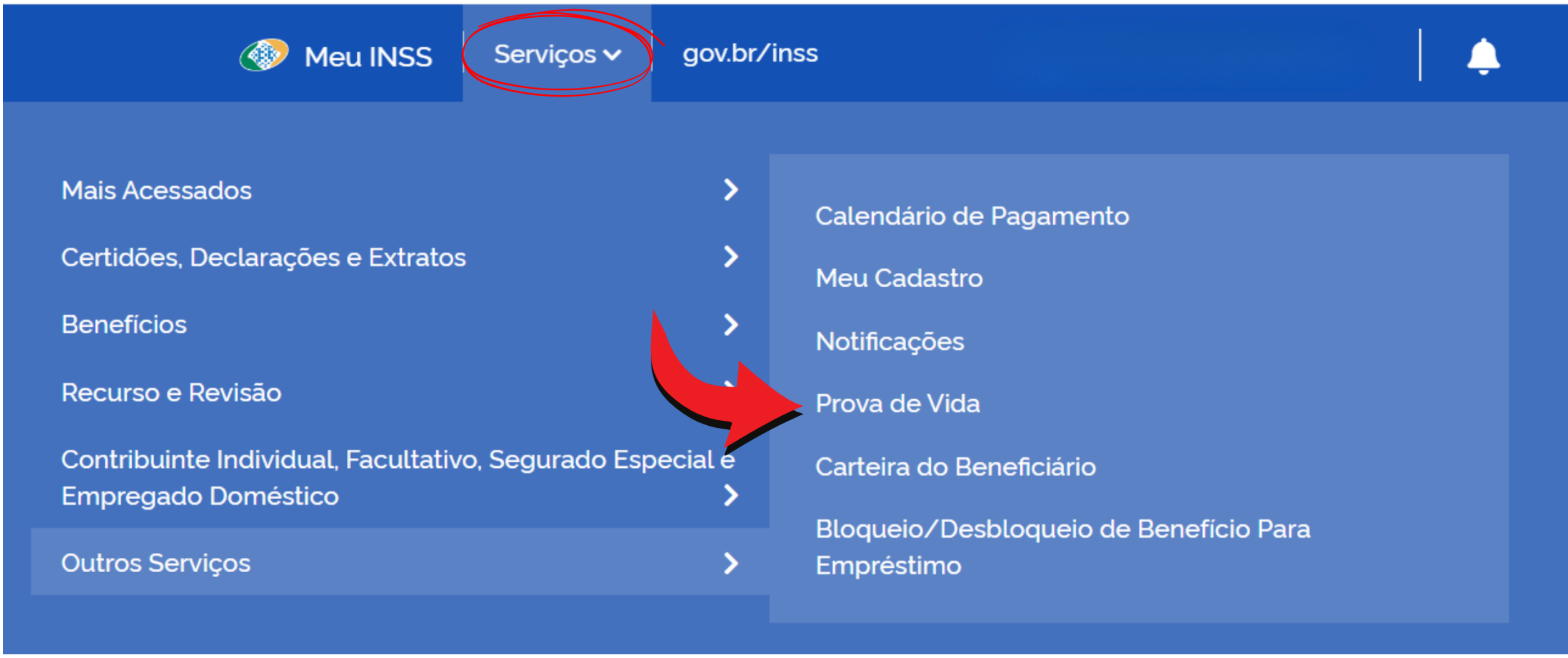
- Access the “My INSS” App or website:
- Download and install the “Meu INSS” app on your cell phone (keep reading and see how to download the Meu INSS App) or;
- Access the official website on your computer.
- Login:
- Log in with your gov.br account. If you don't have a registration, follow the instructions to create an account.
- Find the “Proof of Life” Option:
- In the main menu, look for the “Services” option and then “Other Services”.
- Look for the “Proof of Life” option and click to start the process.
- In the next menu, click on “Proof of Life History”.
- Then, select the option “Proof of life pending”.
- To continue, click “Authorize”.
- Follow the instructions on the screen:
- The app or website will provide detailed instructions. Follow each step carefully.
- You will be redirected to a new step where you must provide your data.
- Facial recognition:
- In this step, you will be directed to facial recognition to verify the authenticity of the proof of life.
- Follow the on-screen instructions to perform facial recognition.
- Once facial recognition is complete, click “OK”.
- Confirm completion of the Proof of Life:
- Once completed, the status of your Proof of Life will change to “Authorized” and you will be able to monitor the completion of the process through the application itself or through the website.
- On the Authorization screen, your Proof of Life status will change to “Authorized”.
- After following all the steps, confirm that the Proof of Life has been completed. You will receive a confirmation in the app or by email.
- Monitor the Proof of Life on your paying agency's website.